
Bricks Builder just changed the game with version 2.2. After years of developers relying on external CSS frameworks like CoreFramework and Automatic.css to manage design systems, Bricks finally built these capabilities right into the builder itself.
Here’s the question everyone’s asking: Do you still need those external frameworks?
The short answer: Probably not anymore.
Let me explain why.
What Changed in Bricks 2.2
On December 10, 2025, Bricks released version 2.2 beta with something the community had been requesting for years. The new Style Manager centralizes everything you used to need external frameworks for, including color palettes, typography scales, spacing systems, and CSS variables.
But the real show-stopper is the CSS Framework Importer.
This tool lets you paste CSS from any framework (Tailwind, Bootstrap, CoreFramework, ACSS, whatever) and Bricks automatically extracts the classes and variables. It sorts them into categories, lets you add prefixes to avoid conflicts, and imports everything with one click.
No plugins. No syncing. No waiting for updates.
Everything lives natively inside Bricks now.
Why People Started Using CoreFramework in the First Place
CoreFramework became popular with Bricks users for good reasons. It solved real problems that Bricks didn’t handle well on its own.
Before version 2.2, managing design tokens across multiple projects was a pain. You’d manually set up color palettes, spacing scales, and typography systems for every single site. CoreFramework changed that by giving you a visual interface where you could define everything once, then export it as CSS.
The framework offered:
- Centralized color management with automatic shade generation
- Fluid typography that scales smoothly across breakpoints
- Spacing variables that work consistently site-wide
- A library of utility classes for common styling tasks
- Dark mode support built in
The Bricks addon (which costs €119) made it even better by integrating directly with the builder. You could right-click on any input field to select variables through a visual UI. Classes and variables synced automatically between CoreFramework and Bricks.
For agencies building multiple sites, this was huge. Set up your design system once in CoreFramework, import it into Bricks, and you’re done.
The CoreFramework Workflow (Before Bricks 2.2)
Let me walk you through what using CoreFramework with Bricks looked like.
First, you’d set up your project in the CoreFramework web app or WordPress plugin. You’d define your colors, typography scale, spacing system, and breakpoints. The interface made this pretty straightforward.
Then came the matching game. Bricks has default settings that don’t align with CoreFramework out of the box. The default container width in Bricks is 1100px. CoreFramework uses 1400px. You’d need to create a global theme style in Bricks and manually match these values.
Same thing with breakpoints. Bricks defaults to 1279px, 991px, 767px, and 478px. CoreFramework uses 1400px, 992px, 768px, and 480px. You’d have to enable custom breakpoints in Bricks and align them manually.
After all that setup, you’d export your CSS from CoreFramework and import the classes into Bricks. The Bricks addon helped here, but you were still managing two separate systems.
Updates meant repeating this process. Change a color in CoreFramework? Export and re-import. Tweak your spacing scale? Same thing.
It worked. But it added complexity.
What About Automatic.css (ACSS)?
ACSS took a different approach than CoreFramework. Instead of giving you an external interface to manage your design system, it focused on providing a comprehensive set of utility classes and intelligent defaults.
The framework handles responsive typography, fluid spacing, and automatic color shades. It includes utilities for things like overlays, flex grids, and form styling that you’d otherwise code manually.
ACSS integrates deeply with Bricks through setup files you import. There’s a Bricks Settings JSON file and a Bricks Theme file that configure everything automatically. After setup, you apply classes directly in the builder.
The pricing is different too. ACSS costs $249 per year for unlimited sites across all supported builders, or $649 for lifetime access. No per-builder charges like CoreFramework.
Where ACSS really shines is education. Creator Kevin Geary provides extensive tutorials and resources. If you’re learning web design alongside using the framework, that educational component has real value.
How Bricks 2.2 Changes Everything
The new Style Manager in Bricks 2.2 isn’t just a minor update. It’s a complete design system built into the page builder itself.
Here’s what you get natively now:
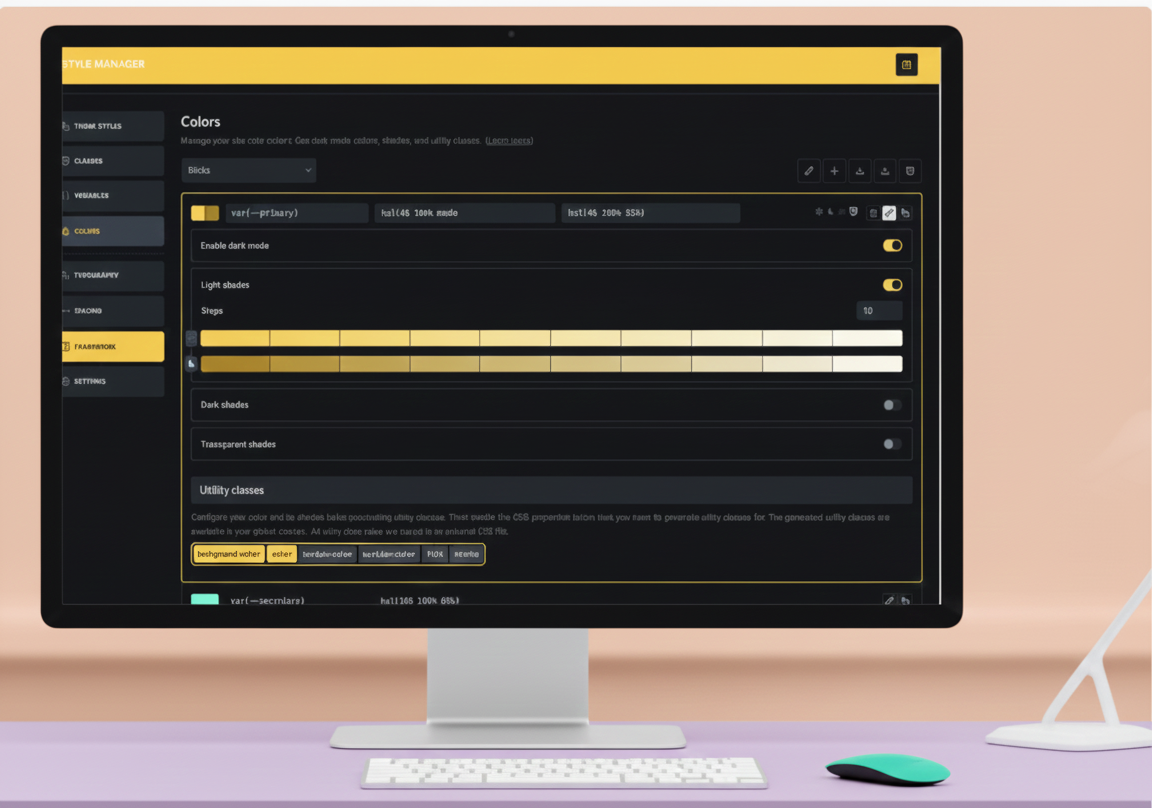
Color Management Create and manage color palettes directly in Bricks. The system supports HSL-based colors with automatic shade generation (light, dark, transparent). You can generate complementary colors, set up dark mode variants, and export everything as CSS variables.
This matches what CoreFramework offered, but without switching between tools.
Typography Scales Define minimum and maximum font sizes with scaling ratios. Bricks generates fluid typography variables that adapt between breakpoints automatically. You can preview how each scale step looks and export utility classes.
Spacing Scales Same concept as typography. Set your base spacing values, define a scale, and Bricks creates the variables and utility classes for you. Use them consistently across your entire site.
CSS Variables Manager Create, organize, and categorize CSS variables in a visual interface. Bulk rename, add prefixes, export to JSON. Everything you used to do in CoreFramework or ACSS, but native to Bricks.
Framework Importer This is the game-changer. Paste any CSS framework’s stylesheet into the code editor. Bricks automatically extracts classes and groups them into categories (layout, colors, typography, etc.). Add prefixes to avoid conflicts. Choose which categories to import. Done.
You can import CoreFramework’s CSS if you want. Or ACSS. Or Tailwind. Or your own custom framework. Bricks doesn’t care. It extracts what it needs and makes it available throughout the builder.
Real-World Workflow Comparison
Let’s look at a practical example. You’re starting a new project and want to set up your design system.
The Old Way (with CoreFramework)
- Log into CoreFramework web app or plugin
- Set up your project preferences
- Define color palette, typography, spacing
- Match container widths between CF and Bricks
- Align breakpoints manually
- Export CSS from CoreFramework
- Import classes into Bricks
- Install and configure the Bricks addon (if you bought it)
- Make a change later? Repeat steps 6-7
The New Way (with Bricks 2.2)
- Open the Style Manager in Bricks
- Define your color palette (with auto-shade generation)
- Set up your typography scale
- Create your spacing system
- Generate utility classes if you want them
- Start building
Everything stays in one place. No exports, no imports, no syncing.
And if you already have a framework you like? Import it once with the CSS Framework Importer and you’re done.
What You Lose by Ditching External Frameworks
Being honest here – there are a few things CoreFramework and ACSS still do better.
CoreFramework Advantages
The standalone web app lets you manage your frameworks outside WordPress. If you work across different platforms or need to share design systems with non-WordPress team members, that’s useful.
The Figma integration is unique. You can sync your design tokens between CoreFramework and Figma, which helps with design handoffs.
Some of the components library features (pre-styled buttons, forms, badges) save time if you’re starting from scratch often.
ACSS Advantages
The utility class library is more comprehensive than what Bricks generates by default. Things like overlay utilities, object-fit helpers, ribbon classes, and form styling aren’t built into Bricks yet.
Kevin Geary’s educational content is legitimately valuable if you’re still learning CSS and design systems. The framework comes with hours of tutorials and a support community.
ACSS includes integrations with form builders like WS Forms and Fluent Forms. Style an entire form in seconds by applying pre-made classes.
The contextual menus in ACSS let you preview what a class does before applying it. That’s helpful when learning the system.
The Cost Factor
Money matters, especially if you’re a freelancer or small agency.
CoreFramework Pricing
- Free standalone web app
- WordPress plugin: Free
- Bricks addon: €119 one-time
- Each builder addon costs separately (Oxygen, Gutenberg)
ACSS Pricing
- $249/year for unlimited sites, all builders
- $649 lifetime access
Bricks 2.2 Native Features
- Free (included with your Bricks license)
If you’re only building Bricks sites, the native features don’t cost you anything extra. For agencies using multiple builders, CoreFramework’s per-builder pricing adds up. ACSS gives you one price for everything, which is cleaner.
But free is hard to beat.
The Facebook Controversy (Briefly)
Some CoreFramework users on Facebook have called out Bricks for “copying” their features. Comments like “This looks suspiciously like Core’s variable system” popped up in beta discussion threads.
Here’s the thing: Bricks didn’t copy CoreFramework. They listened to their community.
For years, Bricks users have asked for native design system tools. They praised frameworks like CoreFramework for filling gaps, but they also wanted built-in solutions. No plugin dependencies, no syncing headaches, no extra costs.
Bricks delivered that in version 2.2.
Did they implement similar concepts? Yes. Centralized variables, color management, framework importing – these are proven patterns that work. But implementing a proven pattern isn’t stealing. It’s good product development.
CoreFramework and ACSS can now focus on advanced features and niche enhancements while Bricks handles the core functionality everyone needs.
Who Should Still Use External Frameworks
Bricks 2.2 doesn’t make CoreFramework and ACSS obsolete for everyone.
Stick with CoreFramework if:
- You work across multiple platforms (not just WordPress)
- You need Figma integration for design handoffs
- You prefer managing frameworks outside WordPress
- You’re already deep into their ecosystem and workflow
Stick with ACSS if:
- You value the comprehensive utility library
- You’re still learning and benefit from the education
- You need form builder integrations (WS Forms, Fluent Forms)
- You work with multiple page builders regularly
Switch to Bricks Native if:
- You only build with Bricks
- You want to simplify your tech stack
- You’re tired of managing plugins and syncing
- You’re starting fresh projects
- You want better performance (fewer dependencies)
For most Bricks users, the native features will be enough. You’ll build faster, maintain simpler sites, and avoid subscription or addon costs.
My Take: Go Native
After digging into Bricks 2.2, I think most people should use the native features.
The Style Manager gives you everything you need for professional design systems. Color management, typography scales, spacing systems, CSS variables – it’s all there. The CSS Framework Importer means you’re not locked in. Import what you want, when you want it.
Your sites will load faster without extra plugins. Your workflow will be simpler without jumping between tools. Your stack will be cleaner without managing subscriptions or license keys.
And you’ll save money.
CoreFramework and ACSS filled real gaps in earlier Bricks versions. But Bricks 2.2 filled those gaps natively. The frameworks did their job so well that Bricks incorporated the concepts into the core product.
That’s not copying. That’s evolution.
Getting Started with Bricks 2.2 Beta
Want to try this yourself? Here’s how to get the beta.
Important: Do NOT use beta versions on production sites.
- Log into your Bricks account at https://my.bricksbuilder.io
- Download the Bricks 2.2 beta
- Install it on a staging site or local development environment
- Open any page in the builder
- Click the settings gear icon
- Explore the new Style Manager
Start by creating a color palette. The shade generation alone will save you hours. Then set up your typography scale and spacing system. Generate some utility classes if you want them.
Import a framework if you’re curious. The importer works with any CSS file.
Build a test page using the native features. See how it feels.
The beta is stable enough for testing but expect some rough edges. That’s normal. Report any bugs you find to the Bricks team.
FAQ
Can I import my existing CoreFramework or ACSS setup into Bricks 2.2?
Yes. Use the CSS Framework Importer in the Style Manager. Export your CSS from CoreFramework or ACSS, then paste it into the importer. Bricks will extract the classes and variables automatically.
Will Bricks 2.2 break my existing sites that use external frameworks?
No. The new features are additive. If you’re using CoreFramework or ACSS on existing sites, they’ll keep working. You can migrate to native features gradually or stick with your current setup.
Does the Style Manager replace theme styles completely?
Not entirely. Theme styles still control element defaults (containers, sections, etc.). The Style Manager focuses on design tokens (colors, typography, spacing) and utility classes. They work together.
Can I use both native features and external frameworks at the same time?
Technically yes, but it’s messy. You’ll end up with duplicate classes and variables. Pick one approach and stick with it. If you’re starting fresh, use the native features.
What happens to my CoreFramework or ACSS subscription if I switch to native Bricks?
Nothing changes unless you cancel. If you decide you don’t need the external framework anymore, you can choose not to renew. But there’s no rush – test the native features first and make sure they cover your needs.
Is the CSS Framework Importer a one-time thing or can I update imported frameworks?
You can re-import anytime. If your external framework updates, export the new CSS and import it again. Bricks will replace the old classes and variables with new ones.
Does Bricks 2.2 have as many utility classes as ACSS?
Not yet. ACSS has a more comprehensive utility library out of the box. But you can generate custom utilities in Bricks or import ACSS classes if you need them. The gap isn’t as big as it used to be.
Will this work with other page builders like Oxygen?
No. The Style Manager is Bricks-specific. Oxygen and other builders have their own systems. If you work across multiple builders, frameworks like ACSS (which support multiple builders) still make sense.
When will Bricks 2.2 stable be released?
Bricks hasn’t announced an exact date yet. Based on their release history, the stable version should come within a few weeks of the beta. Check the official Bricks changelog for updates.
Can I go back to my old workflow if I don’t like the new features?
Absolutely. The Style Manager is optional. If you prefer your existing CoreFramework or ACSS setup, keep using it. Nothing forces you to switch.