
Your site looks great on desktop. Then someone opens it on their phone and the text is either microscopic or comically huge. Sound familiar?
This is exactly what fluid typography solves. And since Bricks 2.1, you don’t need to mess with complicated CSS math or external tools to make it work.
Here’s how to set up fluid typography in Bricks Builder that actually works across every device.
What Is Fluid Typography (And Why You Need It)
Fluid typography means your text size adjusts smoothly as the screen size changes. Not in sudden jumps at breakpoints, but gradually as someone resizes their browser or views your site on different devices.
Think about it this way. Traditional responsive design uses media queries. You might say “at 768px wide, make this heading 24px” and “at 1200px wide, make it 32px.” But what happens at 900px? Or 1150px? The text stays at whatever size you set for the previous breakpoint.
With fluid typography, the text scales smoothly between those points. At 768px it’s 24px. At 1200px it’s 32px. And at 900px? It’s somewhere in between, calculated automatically.
The system uses CSS variables with clamp functions to create font sizes that scale smoothly between minimum and maximum values, which means better readability on every screen without manually setting sizes for multiple breakpoints.
How CSS Clamp Makes This Work
Before Bricks built this feature in, developers had to write clamp functions manually. Let me break down what’s actually happening under the hood so you understand why this works.
The clamp function takes three values:
Minimum value – The smallest your text can get (usually for mobile) Preferred value – The responsive size that adapts to screen width Maximum value – The largest your text can get (usually for desktop)
Here’s what a clamp function looks like in CSS:
font-size: clamp(16px, 1rem + 2vw, 32px);This tells the browser: “Make this text at least 16px, at most 32px, and ideally calculate it as 1rem plus 2% of the viewport width.”
The preferred value uses viewport width units (vw) to determine how fluid typography scales, controlling the starting and ending points of fluid behavior and change speed.
The math gets complicated fast when you’re trying to calculate the exact viewport width unit and relative size needed. That’s why Bricks building this into the interface is such a big deal.
Accessing the Fluid Typography Generator
Bricks gives you two ways to access the typography generator.
Method 1: Through the Variable Manager
- Open any page in Bricks Builder
- Look for the variable manager icon in the top toolbar
- Click the “Aa” icon in the header
- This opens the Fluid Typography Generator
Method 2: Through Theme Styles
- Click the settings gear icon (top left)
- Go to Theme Styles
- Navigate to the Typography section
- Click on “Fluid Typography” control
Both methods open the same generator. Use whichever feels more natural in your workflow.
Creating Your First Typography Scale
Let’s walk through setting up a basic fluid typography scale for headings.
Step 1: Create a Category
Categories in Bricks are basically separate typography scales. Most people need at least two: one for headings and one for body text.
Click “Add Category” and name it “Headings.” This scale will store all your heading sizes.
Step 2: Choose Your Scale Type
Bricks offers three naming conventions:
T-shirt sizes – Uses 2xs, xs, s, m, l, xl, 2xl Numeric – Uses numbers like 1, 2, 3, 4, 5, 6 Custom – You define the names (like “small,” “medium,” “large,” “title”)
For headings, I usually go with numeric because it maps nicely to H1 through H6. Your variables will be named things like --headings-1, --headings-2, etc.
Step 3: Set Your Baseline
The baseline is your starting point. Every other size in the scale is calculated from this.
Let’s say you want your baseline (H4) to be 18px on mobile and 22px on desktop. Enter those values in the minimum and maximum fields.
Step 4: Choose a Scale Ratio
This determines how much bigger or smaller each step is compared to the baseline.
Common ratios:
- 1.125 (Major Second) – Subtle scaling, good for conservative designs
- 1.25 (Major Third) – Moderate scaling, most versatile
- 1.333 (Perfect Fourth) – Bold scaling, good for dramatic headings
- 1.5 (Perfect Fifth) – Very bold, use sparingly
Pick 1.25 for now. With a baseline of 16px and a scale ratio of 1.5, the next step above the baseline calculates as 24px, with ratios applied upward and downward to generate consistent scaling in both directions.
Step 5: Generate Variables
Click the up arrow button to create a larger variable (for H3, H2, H1). Click it three times.
Click the down arrow button to create smaller variables (for H5, H6). Click it twice.
Bricks automatically calculates all the sizes based on your baseline and ratio.
Step 6: Preview and Adjust
Click the eye icon to open the preview panel. You’ll see each variable displayed at its actual size, with both minimum and maximum values shown.
Type in custom preview text if you want to see how real words look at each size.
If something looks off, you can manually edit any variable by clicking on it in the center column. This won’t affect the other calculations.
Creating a Body Text Scale
Now let’s set up a second scale for body text and smaller elements.
Create another category called “Text.”
This time, use t-shirt sizing (xs, s, m, l, xl) since it’s not tied to HTML heading elements.
Set your baseline to something like 16px minimum and 18px maximum. Body text shouldn’t vary as dramatically as headings.
Use a smaller ratio like 1.125 for more subtle size differences.
Generate a few variables above and below the baseline.
Using Typography Variables in Your Designs
Here’s where it gets practical. You’ve got these variables generated. Now what?
Applying to Theme Styles
The smartest approach is to set these variables in your Theme Styles so they apply site-wide.
- Go to Theme Styles > Typography
- Under Body, set the font size to your baseline text variable
- Under H1, set the font size to your largest heading variable
- Repeat for H2 through H6
Now every new heading or text element you add automatically uses fluid typography.
Applying to Individual Elements
You can also apply variables to specific elements:
- Select any text element in the builder
- Go to the Typography controls
- In the font size field, type two dashes
-- - A dropdown appears showing all your typography variables
- Select the one you want
The element now scales fluidly across all screen sizes.
Creating Utility Classes
If you want to apply sizes without touching HTML heading tags, generate utility classes.
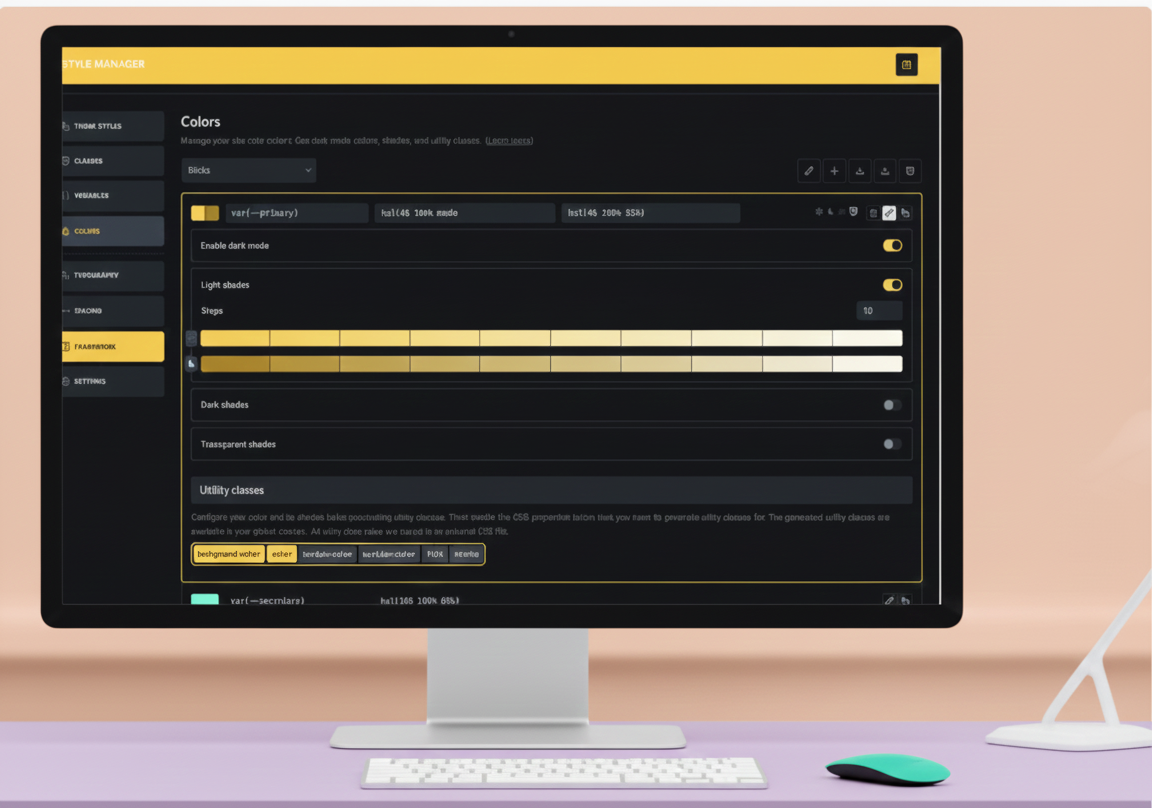
In Bricks 2.2, the Style Manager lets you define class names that map to your variables. For example, create a class called .text-xl that uses your --text-xl variable.
Now you can apply that class to any element, regardless of whether it’s actually an H1, H2, or paragraph.
Our Recommended Settings (Copy These)
If you want to skip the experimenting and just start with settings that work, here’s what we recommend for most websites.
These settings have been tested across hundreds of projects and provide excellent readability on all devices while maintaining visual hierarchy.
For Headings:
- Category name: Headings
- Scale type: Numeric (maps to H1-H6)
- Baseline variable: 4 (this will be your H4)
- Minimum size (mobile): 18px
- Maximum size (desktop): 22px
- Scale ratio: 1.25 (Major Third)
- Variables to generate: 3 steps up, 2 steps down
This gives you:
- H1: 35px min → 43px max (your hero/page titles)
- H2: 28px min → 34px max (section headings)
- H3: 22px min → 27px max (sub-sections)
- H4: 18px min → 22px max (smaller headings)
- H5: 14px min → 18px max (minor headings)
- H6: 11px min → 14px max (rarely used, but available)
For Body Text & UI:
- Category name: Text
- Scale type: T-shirt sizes (xs, s, m, l, xl)
- Baseline variable: m (your standard paragraph text)
- Minimum size (mobile): 16px
- Maximum size (desktop): 18px
- Scale ratio: 1.125 (Major Second)
- Variables to generate: 2 steps up, 2 steps down
This gives you:
- XL: 20px min → 23px max (lead paragraphs, important callouts)
- L: 18px min → 20px max (slightly emphasized text)
- M: 16px min → 18px max (standard body text)
- S: 14px min → 16px max (captions, footnotes, metadata)
- XS: 12px min → 14px max (legal text, tiny labels)
Theme Style Mappings:
Once you generate these, go to Theme Styles and set:
- Body → Font Size:
--text-m - H1 → Font Size:
--headings-1 - H2 → Font Size:
--headings-2 - H3 → Font Size:
--headings-3 - H4 → Font Size:
--headings-4 - H5 → Font Size:
--headings-5 - H6 → Font Size:
--headings-6
Line Height Settings:
Fluid font sizes need proportional line heights. Set these in Theme Styles:
- Body → Line Height: 1.6
- H1-H3 → Line Height: 1.2
- H4-H6 → Line Height: 1.4
Why These Settings Work:
The 1.25 ratio for headings creates clear visual hierarchy without being too dramatic. Headlines stand out but don’t overwhelm the page.
The 1.125 ratio for body text provides subtle size variations. You get enough difference between sizes to be useful, but not so much that it looks inconsistent.
Starting body text at 16px minimum ensures readability on mobile. Anything smaller strains the eyes.
The 18px-22px baseline for H4 is strategic. It’s large enough to work as a subheading but not so large that you can’t use it frequently.
Feel free to adjust these based on your specific design needs, but this is a solid starting point that works for most content-focused websites.
Real World Example: Setting Up a Complete Site
Let me walk you through how I’d set up fluid typography for an actual project using slightly different values to show flexibility.
Headings Scale:
- Category name: “Headings”
- Scale type: Numeric
- Baseline (H4): 18px min, 22px max
- Ratio: 1.333 (Perfect Fourth)
- Generated variables:
- H1: 32px min, 44px max
- H2: 24px min, 33px max
- H3: 18px min, 25px max
- H4: 18px min, 22px max (baseline)
- H5: 13px min, 16px max
- H6: 10px min, 12px max
Body Text Scale:
- Category name: “Text”
- Scale type: T-shirt
- Baseline (M): 16px min, 18px max
- Ratio: 1.125 (Major Second)
- Generated variables:
- XL: 20px min, 23px max
- L: 18px min, 20px max
- M: 16px min, 18px max (baseline)
- S: 14px min, 16px max
- XS: 13px min, 14px max
In Theme Styles, I’d map these:
- Body text:
--text-m - H1:
--headings-1 - H2:
--headings-2 - And so on
For any special cases (like a hero headline that needs to be huge), I’d create a custom variable in the generator with extreme min/max values.
Common Mistakes and How to Fix Them
Mistake 1: Using Too Many Different Scales
Don’t create 5 or 6 different typography categories. Stick with 2-3 maximum (headings, body text, maybe a special scale for UI elements).
More scales means more variables to manage and increases the chance of inconsistency.
Mistake 2: Extreme Min/Max Differences
If your minimum is 12px and your maximum is 60px, the text might look fine at the extremes but weird in the middle ranges.
Keep the ratio between min and max reasonable. A good rule of thumb: max should be no more than 2-2.5x the min.
Mistake 3: Ignoring Line Height
Fluid font sizes are great, but if your line height doesn’t adjust proportionally, text becomes hard to read.
In Bricks, you can set line heights using relative units (like 1.5) that scale with the font size. Do this in Theme Styles alongside your fluid font sizes.
Mistake 4: Not Testing Across Devices
The preview panel in Bricks shows you the extremes, but always test your actual site on real devices.
Grab your phone. Resize your browser window. Make sure text remains readable at every size.
Advanced Tips for Power Users
Combining with Container Queries
Bricks supports container queries. You can make typography respond to the container width instead of viewport width.
This is useful for modular components that need to look good in different contexts (sidebar, full width, etc.).
Importing External Scales
Tools like Utopia or Type Scale generate clamp values you can import. External fluid scale variables can be copied and imported into Bricks through the CSS Variable Manager, with clamp variables automatically becoming available as Bricks variables.
Copy the CSS variables from these tools, paste them into Bricks’ variable importer, and they integrate seamlessly.
Exporting for Reuse
Once you’ve built a perfect typography system, export it as JSON from the variable manager.
Import this JSON into new projects to instantly replicate your typography setup. Huge time saver for agencies working on multiple sites.
Custom Ratios for Specific Needs
The preset ratios work for most cases, but you can enter custom ratios if needed.
For example, if you need something between 1.25 and 1.333, enter 1.29. Bricks calculates everything based on your custom value.
Bricks 2.2 Enhancements
If you’re on Bricks 2.2 beta or later, you get extra features in the Style Manager.
The new Typography & Spacing Scale generator lives in the Style Manager interface, which consolidates everything in one place.
You can now generate utility classes directly from the scale generator. Define class names and CSS properties (font-size, margin, whatever) that map to your scale variables.
The preview mode is more robust too. You can add or remove variables right from the preview panel, test different text samples, and see exactly how each variable behaves.
The CSS export feature lets you download your entire scale as a file, which is useful for documentation or sharing with developers.
Accessibility Considerations
Fluid typography isn’t just about looking good. It affects accessibility too.
Using vw units alone creates accessibility problems because they don’t respond to zoom functionality, failing to meet WCAG criteria for resizing text.
Bricks handles this correctly by combining rem units with vw units in the clamp calculation. When users zoom in or adjust their browser’s default font size, your fluid typography respects that.
But there are still things to watch:
Don’t Go Too Small
Never let your minimum font size drop below 14px for body text. Ideally, keep it at 16px or above.
Smaller text might look sleek on your design mockups, but it’s hard to read for many people.
Test with Different Font Sizes
Change your browser’s default font size setting and see if your site still works. Good fluid typography should adapt.
Consider Contrast
Smaller text needs higher contrast to remain readable. If you’re using light text on dark backgrounds (or vice versa), make sure contrast ratios meet WCAG AA or AAA standards.
When NOT to Use Fluid Typography
Fluid typography isn’t always the answer.
Fixed-Width Designs
If your site has a fixed max-width container that never changes, fluid typography adds complexity without benefit. Just set static sizes.
Print Stylesheets
Don’t use viewport-based units in print styles. They don’t make sense when there’s no viewport.
Small UI Elements
Buttons, badges, labels, and other small UI components usually work better with fixed sizes. They need to be predictable across all screen sizes.
When Client Requests Static Sizes
Some clients have brand guidelines that specify exact font sizes. In those cases, you might use fluid typography for the general content but fixed sizes for branded elements.
Comparing to External Tools
Before Bricks 2.1, most people used external calculators or frameworks.
Tools like Utopia, Type Scale, and Fluid Typography Calculator are still useful for generating the math, but Bricks eliminates the copy-paste workflow.
External fluid typography calculators now include Bricks Builder export options, allowing download of clamp-based CSS variables as JSON files, which shows how popular Bricks’ native integration has become.
CoreFramework and ACSS both offered fluid typography features, but now that Bricks has it built in, you don’t need those frameworks unless you’re using other features they provide.
The benefit of Bricks’ native approach: no extra plugins, no syncing between systems, no compatibility concerns with updates.
Troubleshooting Common Issues
Variables Not Appearing
Make sure you’ve saved your typography scale after generating it. Unsaved changes don’t create the actual CSS variables.
Text Not Scaling
Check that you’re actually using the variables, not hard-coded pixel values. Look in the browser inspector to verify the CSS.
Weird Sizes at Certain Viewports
This usually means your min/max range is too wide or your ratio is too aggressive. Adjust one or both until it looks right across the range.
Variables Showing in Editor But Not Frontend
Clear your cache. Both browser cache and any caching plugins you’re running. Bricks generates these as CSS variables, and aggressive caching can serve stale versions.
FAQ
Can I use fluid typography with custom fonts?
Yes. The fluid typography system works with any font family. Upload your custom fonts through Bricks’ Font Manager, then apply the fluid size variables to elements using those fonts.
Does fluid typography work with the Classic Editor or only Bricks-built pages?
Fluid typography variables are global CSS variables. They work anywhere on your site, including Classic Editor content, as long as you reference the variables in your CSS or apply the generated utility classes.
How do I convert an existing site to fluid typography?
Create your fluid scales in the generator. Then go through your Theme Styles and replace fixed font sizes with the appropriate variables. Most of your site will update automatically. For custom classes or inline styles, you’ll need to manually update those.
Can I have different fluid scales for different templates?
You can create multiple scales in categories, but they’re site-wide variables. If you need truly different scales per template, you’d need to create uniquely named variables for each and apply them through template-specific classes.
What happens on really wide monitors (like 4K)?
The maximum value in your clamp function caps how large text can get. On a 4K monitor, your text stays at the maximum you defined, it doesn’t keep growing infinitely.
Is there a performance impact from using clamp and CSS variables?
Negligible. CSS variables and clamp are native browser features with excellent performance. The calculation happens once per render and is highly optimized.
Can I use different ratios for different parts of the scale?
Not automatically. The generator applies one ratio across the entire scale. But you can manually edit individual variables after generation to use different ratios for specific steps.
How does this work with CSS frameworks like Tailwind?
If you import Tailwind into Bricks, your fluid typography variables coexist with Tailwind’s classes. You can use both in the same project. The CSS Framework Importer in Bricks 2.2 makes this even easier.
Do I need to update anything when Bricks updates?
Your fluid typography scales are stored as data in your WordPress database. Bricks updates don’t affect them. The generator might get new features, but your existing scales keep working.
Can I share my typography scales between multiple sites?
Yes. Export your variables as JSON from one site, import them into another. This includes your entire typography system with all scales and settings.